Know who's on what. Without asking.
Tasks, deadlines, timers and automatic activity tracking in one app, plus a daily journal that writes itself. Runs on your own office network: no cloud, no subscription.
Why it helps
Less chasing, fewer status meetings, honest numbers.
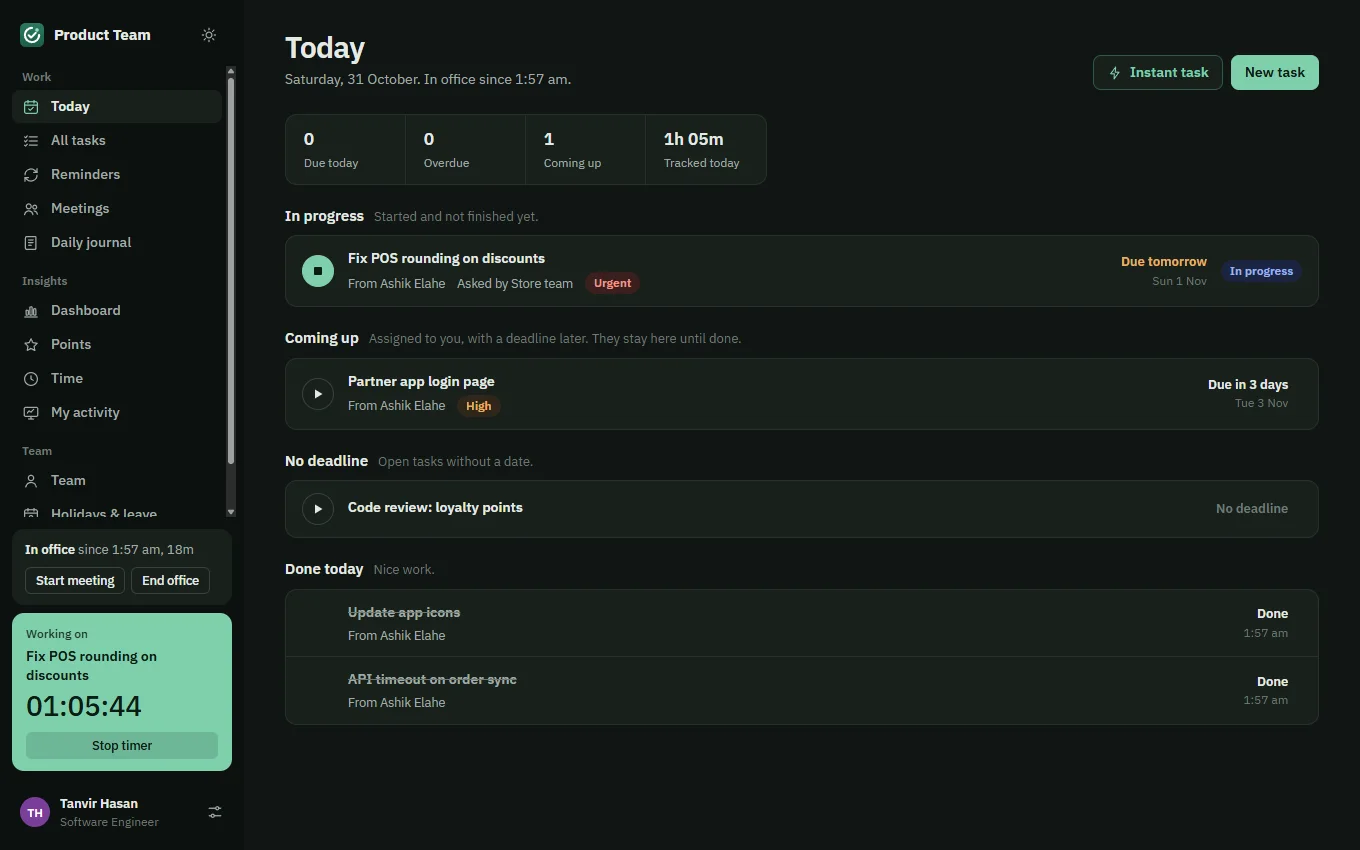
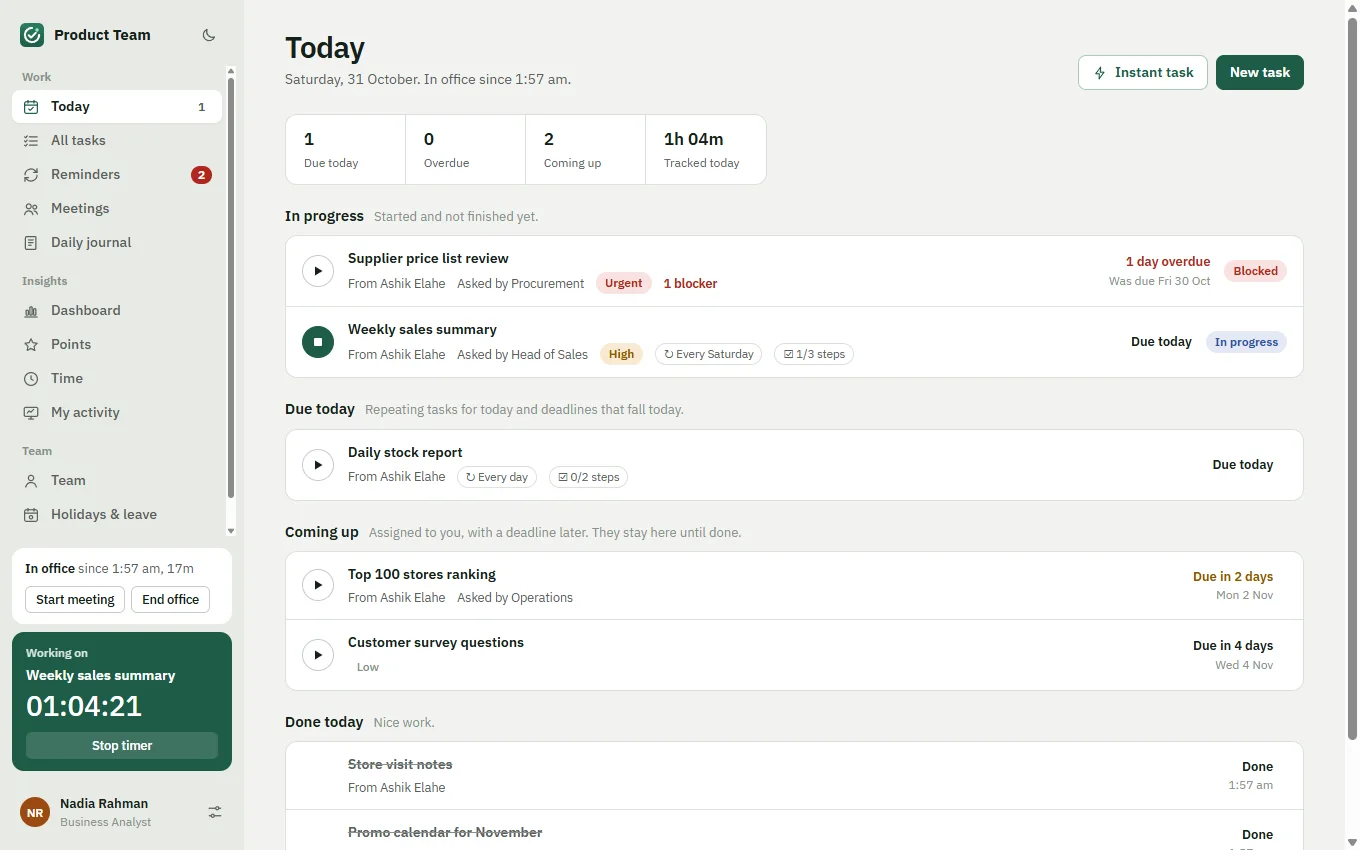
The Today page lists what's overdue, due today and coming up. Nobody has to ask "what should I do next?"
Press ▶ on a task and the clock runs. The app also records which apps, files and websites the time went to, by itself.
The journal fills in as you work: tasks, time on each, meetings and steps done. Edit it, post it, copy it into email or chat.
Points for on-time work, deductions for missed deadlines, and a dashboard that shows who is improving.
One office PC is the server. Nothing goes to the internet, and members only ever see their own tasks and activity.
Holidays and leave skip deadlines instead of failing them. Repeating reports, checklists, hand-overs and reminders are all built in.
What's inside
Everything a small team needs, nothing it doesn't.
Overdue, due today, coming up and done today, at a glance.
Assignee, who assigned it and when, deadline, priority, who asked for it, and every hand-over.
Daily, weekly on chosen days, monthly on dates, yearly. The next one appears when you finish.
Steps tick off in order; sub-tasks nest five levels deep.
One click starts the clock, even before the task has a name. A "Still working?" check every 10 minutes.
Time per app, window, file, folder and website. Locked PC counts as away.
Start office, work, end office: your day is written up with office time.
Agenda, attendees, notes and action items that turn into tasks.
On-time points, missed-deadline deductions, appeals, mistakes and good feedback.
Working time per day, what's stuck, who's improving, and plain-language insights.
New tasks pop up within seconds; due reminders with snooze, Done and Not today.
Days off push deadlines to the next working day, so nobody loses points.
Members see only their own tasks and activity. Website addresses never keep anything after "?".
A 6-digit code to your own email lets you set a new password. No waiting for an admin.
Members join from home or mobile data through a free Cloudflare Tunnel, or you keep Team Desk to the office Wi-Fi.
Switch with the sun/moon button next to your team name.
Screens
A closer look.
How to use it
Set up in ten minutes.
Set up the team (once)
- Install on the server PC.Pick the office PC that stays on during work hours. Run the installer and choose Host the team server. Create your admin account.
- Add your team.Team → add each member with a user ID and a first password. Settings shows the address members connect to, like
http://192.168.1.20:4580. - Install on every member's PC.Choose Join my team, enter that address and sign in. If it can't connect, allow Team Desk through Windows Firewall on the server PC.
- Optional: office rules.In Settings set weekly days off and holidays, and limit the app or tracking to the office network.
Every day
- Start office.One click in the sidebar records when your day began.
- Open Today and press ▶.Work on a task; the timer runs. No task yet? Press Instant task and name it when you stop.
- Tick steps, mark done.Checklists tick off in order. Done on time earns the task's points.
- End office and post the journal.Your day is already written. Check it, post it, and copy it wherever your manager wants it.
Access from anywhere
Let members work from home or mobile data.
An office address like 192.168.0.105 exists only inside one Wi-Fi network, so "Any network" alone can't reach members elsewhere. Team Desk can open a free Cloudflare Tunnel from the server PC: members then use a fixed secure address such as https://teamdesk.yourdomain.com on any connection. Nothing is opened on your router. You need a domain managed by Cloudflare (free plan).
On Cloudflare (once)
- Add your domain to Cloudflare.Free account at dash.cloudflare.com → Add a domain → Free plan. Check that your website and email records were copied, then change the domain's nameservers to the two Cloudflare shows. Wait until it says Active.
- Create a tunnel.Zero Trust → Networks → Tunnels → Create a tunnel → Cloudflared, name it
teamdesk. On the Windows install step, copy the command (it holds the tunnel key). You don't need to run it. - Add the public address.Public hostname (or Routes → Add route → Published application): subdomain
teamdesk, your domain, service HTTPlocalhost:4980. Use the port shown in Team Desk.
In Team Desk
- On the server PC: Settings → Access from anywhere.Enter the public address and paste the command you copied. Click Turn on. The first time it downloads Cloudflare's connector (about 55 MB); within a minute it says On.
- Test it on a phone using mobile data.Open your public address. The Team Desk sign-in page should appear.
- Members: join with the public address.It works everywhere, the office included. Members who joined with the office address switch to the public one on their own when they're away, after opening Team Desk once at the office.
Questions
Good to know.
Does it need the internet or a cloud account?
No. One PC in the office runs the server and keeps all data on its own disk (%APPDATA%\Team Desk\server-data). Everyone connects over the office network. For members at home or on mobile data, turn on Access from anywhere (a free Cloudflare account). To back up, quit Team Desk on the server PC and copy that folder.
What exactly does activity tracking record?
The app in front, its window title (which usually shows the file or folder), and the website address in Chrome, Edge, Brave, Opera, Vivaldi and Firefox, with anything after "?" removed. No screenshots, no keystrokes. A member sees only their own activity; admins see members'. Admins aren't tracked unless they switch it on for themselves.
Windows says "Windows protected your PC". Is it safe?
That message appears for apps that aren't sold through the Microsoft Store or signed with a paid certificate. Click More info → Run anyway. Team Desk installs just for your user and doesn't need admin rights.
How do updates work?
For a new PC, use the full installer. For PCs that already have Team Desk, download the small update, extract it and double-click Install-Update.bat. Update the server PC first, then the members' PCs. Tasks, accounts and settings are always kept.
Can people use it from a Mac or phone?
Yes, partly: any browser can open the server address (on the office network, or anywhere with Access from anywhere) and use tasks, timers, the journal and the dashboard. Automatic activity tracking and pop-up reminders need the Windows app.
What if someone forgets their password?
Click Forgot password? on the sign-in screen and enter your user ID or email. A 6-digit code arrives at the email address in your profile; type it in and choose a new password. This needs an admin to connect a sending email account once, in Settings → Password reset by email (Gmail or Outlook with an app password works). An admin can also reset anyone's password from the Team page. If the only admin is locked out, go to the server PC, right-click the Team Desk icon near the clock and choose Reset an admin password.
Members can't connect to the server PC. What now?
On a different Wi-Fi or mobile data, an address like 192.168.x.x can't work: use Access from anywhere. On the same Wi-Fi, check the address includes the port (for example :4580) and that Windows Firewall on the server PC allows Team Desk. Some office Wi-Fi networks block PCs from reaching each other ("client isolation"): ask IT to allow the server's address and port, or connect the server PC with a network cable.
Give your team a clear day.
Free for Windows 10 and 11 · v1.6.0 · 93 MB
Get in touch